

Your customer wants their connection back, not their settings erased. You will build a helper that recognizes a restart request, asks for confirmation, and records a simulated restart. You will check the recorded command as well as the reply.
Allow 25–35 minutes, including workspace setup. Have your Rasa license and OpenAI API key ready. Neither value belongs in the terminal commands below.
Open the prepared workspace
Open the pinned tutorial Codespace. Sign in to GitHub if asked. On the creation page, choose the software-factories workshop configuration and at least four cores.
The page recommends two secrets: RASA_LICENSE for your license and OPENAI_API_KEY for your API key. If either secret already exists on your account, reuse it. Before creating the Codespace, open Settings → Codespaces, edit that existing secret, and include RasaHQ/rasa-community-resources in its Repository access selection. Save the selection, then return to the creation page. An existing secret scoped only to your fork is not available to this repository.
For a secret you have not saved before, enter its value in the creation page’s corresponding box. GitHub supplies secrets as environment variables; you add no key files to the repository. If you cannot edit an existing secret’s access, ask the account’s secret owner to grant the exact repository and stop here. Choose Create codespace only after both secrets have the required access.
If the secret boxes are absent, add them in your GitHub account under Settings → Codespaces → New secret. Grant access to RasaHQ/rasa-community-resources. Stop and start an already-created Codespace after adding them. GitHub documents when account-specific secrets become available.
Wait for the terminal to print a line beginning Setup finished. A visible editor does not mean installation has finished. If you see NOT READY, read the named problem, correct that secret in GitHub and restart the Codespace. Do not paste its value into a diagnostic message. After correcting repository access, stop and start the same Codespace so GitHub reloads its secrets. In its terminal, rerun the setup check:
bash /workspaces/rasa-community-resources/.devcontainer/software-factories-workshop/setup.shWait for Setup finished again before initializing, training, or opening the helper. If it still says NOT READY, keep that message and return to the secret owner. Do not repeat restarts without a corrected scope or create a second workspace to work around a missing secret.
If GitHub refuses creation, check the selected account and your Codespaces allowance. The creation troubleshooting page explains account and quota restrictions. Do not keep creating workspaces to diagnose one failed setup.
Create and train the helper
Open a terminal in the Codespace. The commands below start a fresh folder. Check first whether $HOME/router-helper-agent already exists:
- If it is your earlier attempt and contains
agent.ymlandintegrations.yml, change into that folder, skipmkdirandrasa init, and resume atinstall_helper.py, then train and start the Inspector. Keep an existing Inspector stopped while retraining. - If the folder is unrelated, keep it intact. Use
$HOME/router-helper-tutorialas a new folder instead, replacing every later$HOME/router-helper-agentpath with$HOME/router-helper-tutorial. Do not delete a project to make a copied command succeed. - If your earlier folder is empty, change into it, skip
mkdir, and start withrasa init.
For a fresh folder, run each command only after the previous one finishes:
mkdir "$HOME/router-helper-agent"
cd "$HOME/router-helper-agent"
"$HOME/.venv-mantle/bin/rasa" init --engine mantle --no-prompt
"$HOME/.venv-mantle/bin/python" /workspaces/rasa-community-resources/workshops/software-factories-masterclass/router-helper/mantle/install_helper.py .
"$HOME/.venv-mantle/bin/rasa" train
"$HOME/.venv-mantle/bin/rasa" inspect --port 5010
The first command creates your working agent outside the checked-out examples. Keep the chosen folder name consistent throughout the tutorial.
The installer copies the restart and refusal skills into the agent. It moves the starter skills aside and sets the router persona and rules. You should see installed router_restart; persona and rules set. Now run: rasa train. Training should finish successfully before you start the Inspector.
If a command is missing, installation may still be running. If training reports a configuration error, keep its message and inspect the named file. Do not continue to chat against an old model and count that as testing your change.
Leave the Inspector terminal running. When it says Rasa server is up and running, open a second terminal and run:
bash /workspaces/rasa-community-resources/.devcontainer/software-factories-workshop/print-inspector-url.shOpen the address it prints. Accept GitHub’s Continue page for your own private forwarded port if it appears. Use port 5010; do not make the port public to work around a sign-in problem.
Ask, then confirm
In the Inspector, type Restart my router. The helper should ask you to confirm. It should explain that the connection will drop briefly and the Wi-Fi name and password will stay the same.
Only then type Yes. You should see a reply saying that a restart was recorded as REBOOT. These are expected meanings, not a transcript of your future run. The model’s surrounding wording can differ.
Open the conversation’s Inspect view. Find the restart tool call and its result. The simulated tool returns these values:
{ "status": "sent", "command_sent": "REBOOT" }If the reply sounds right but you cannot find a tool result, you have not yet established that the tool ran. Keep the conversation open and check its events rather than sending another confirmation blindly.
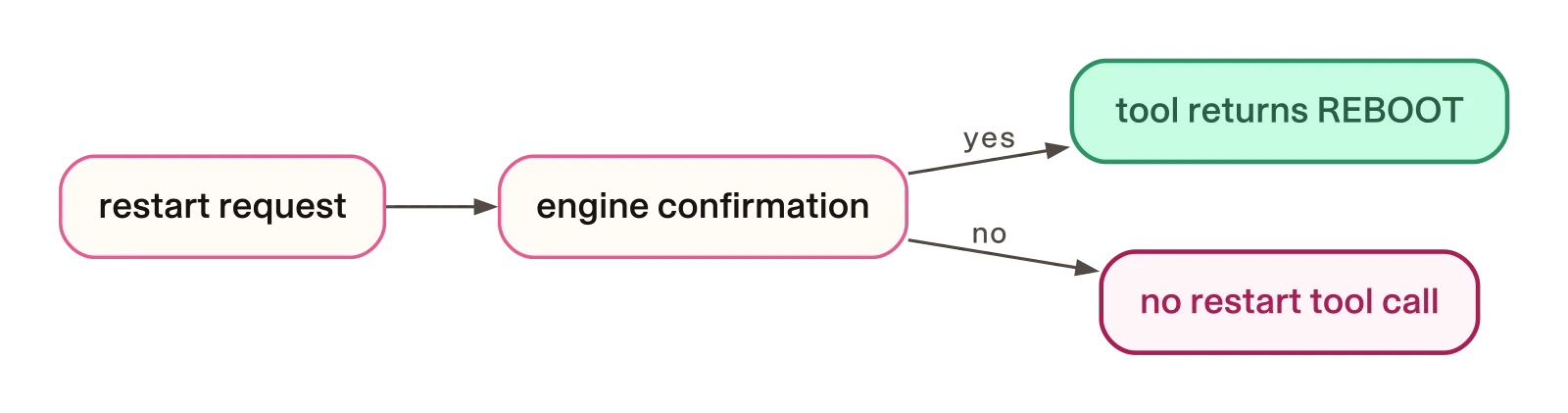
Follow this intended confirmation path in the conversation events. The endpoint is the simulated tool result; a physical router sits outside the exercise.
Find where the control lives
Open your chosen agent folder in the editor, then open its skill file:
skills/router_restart/skill.mdThe confirmation setting belongs to the tool constraint. The engine handles that pause before the restart tool can run. The tool’s Python file maps a restart to REBOOT and returns data; it does not contact a device.
Changing a sentence in a chat reply does not change that mapping. In the next part you will check both the conversation and the file, and see why neither check replaces the other.